Tutorials
Step-by-step video guides for Demodokos Foundry. Watch, learn, create.
New to Foundry? Start Here
Install the app, learn the interface, and make your first creation.
How to Install Demodokos Foundry
Install Demodokos Foundry on Windows in minutes. Choose your location and features, let Foundry pick AI models for your GPU, then sign in and download.
Demodokos Foundry Interface Overview: Panels, Workspace, and Navigation
A guided tour of the main panels in Demodokos Foundry, including the Music Generator, Speech panel, Timeline editor, and Style Manager. Learn how the workspace is laid out and how the different panels connect before you start your first AI music or speech project. A good starting point before any other tutorial.
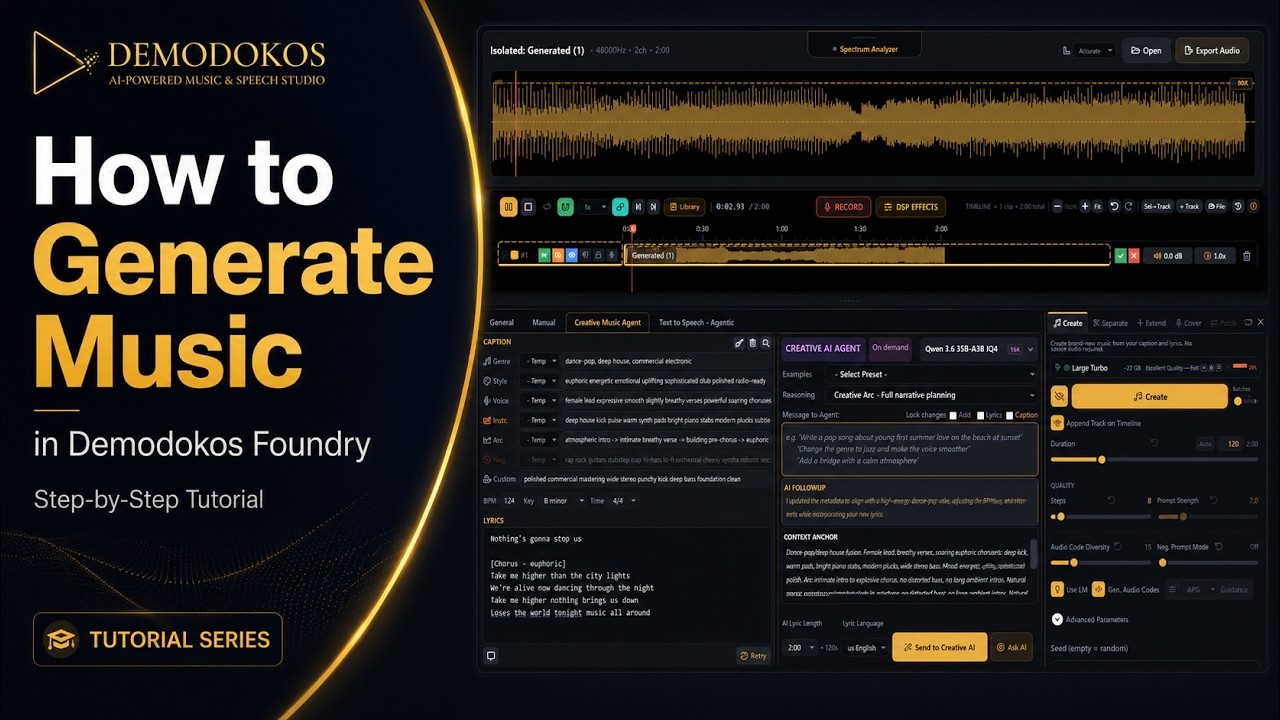
How to Generate Your First AI Song in Demodokos Foundry
Learn how to generate a complete AI song from a text prompt in Demodokos Foundry. Set your genre, mood, and lyrics, and the AI builds a full track with vocals and instruments directly on your local GPU. No cloud uploads, no subscriptions, no queue. Fully offline AI music generation on your own Windows PC.
Demodokos Foundry Settings and AI Models Explained: GPU, VRAM, and Performance
Learn how to configure Demodokos Foundry for your hardware. Covers the available AI model options for music and speech generation, GPU and VRAM settings, and quality vs. speed trade-offs. Helpful if Foundry is running slowly or you want to get the best output from your Windows PC setup.
Voice and Speech
Clone voices, generate speech, shape emotions, and apply effects.
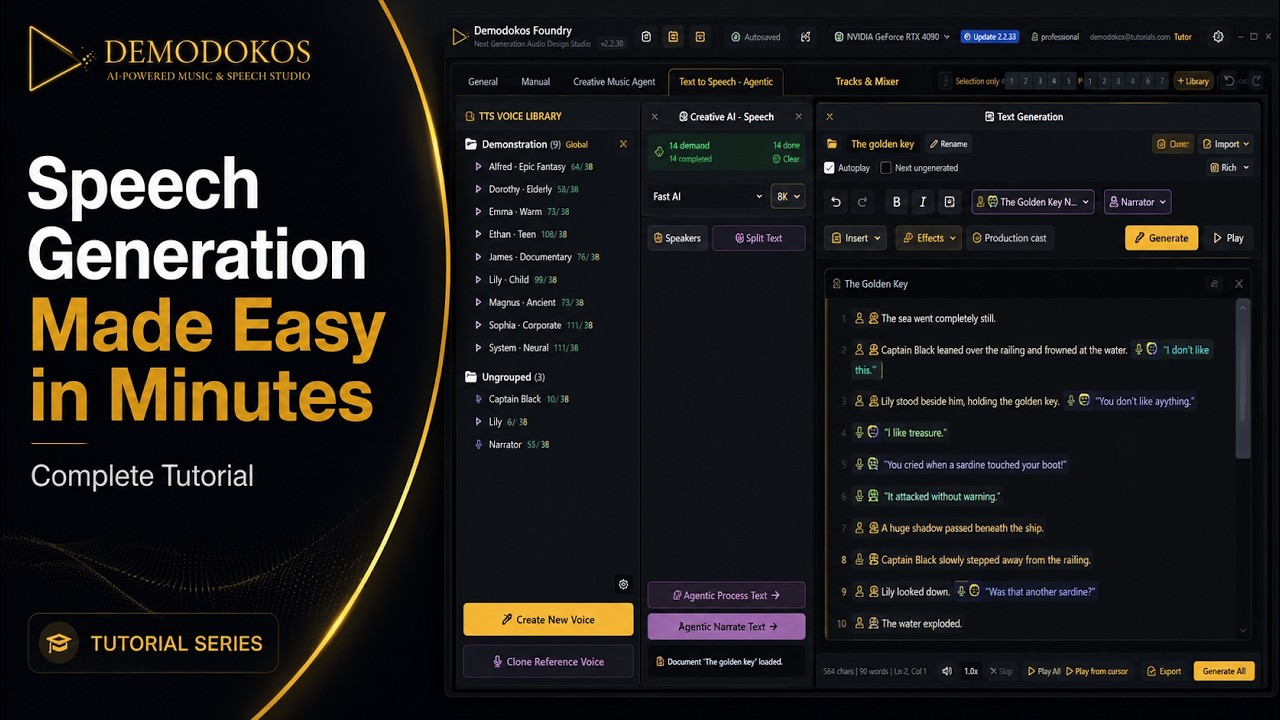
How to Generate AI Speech in Demodokos Foundry: Text-to-Speech Easy Mode Tutorial
Learn how to turn text into spoken audio in Demodokos Foundry using Easy Mode. Create a voice, assign it to a speaker, generate speech from a script, apply emotions, and export to the Timeline.
AI Voice Cloning Tutorial in Demodokos Foundry: Create Voices With or Without an Accent
Clone a realistic AI voice from a short reference clip (as little as 30 seconds) in Demodokos Foundry. Control emotion styles and accent characteristics. Includes an accent-free vs Russian-accented comparison.
How to Create and Save Voice Emotion Presets in Demodokos Foundry Style Manager
Learn how to create, save, and lock AI voice emotion presets in Demodokos Foundry's Style Manager so every character sounds consistent throughout your project. Covers building emotional styles (calm, dramatic, whispered, excited), assigning them to speakers, and preventing style variation between regenerations. Ideal for audiobooks, game dialogue, narration projects, and any work involving multiple AI voices. Runs fully locally on Windows, no cloud needed.
How to Apply a Phone Call Voice Effect in Demodokos Foundry Using DSP Filters
Learn how to apply a phone call audio effect to any AI-generated or recorded voice in Demodokos Foundry using the built-in DSP chain. Covers the telephonic bandpass filter that recreates the narrow frequency range of a phone call. No external plugins required, fully local. Useful for film and game dialogue, podcast production, voice acting, and creative sound design projects.
Music and Editing
Generate full songs, patch sections, and use the Creative AI Agent.
How to Fix Sections of an AI-Generated Song in Demodokos Foundry Using Patching
Learn how to use the Patch feature in Demodokos Foundry to regenerate specific segments of an AI-generated song without redoing the entire track. Useful when one section sounds off, a vocal phrase does not fit, or an instrument part needs replacing. Covers selecting the patch region, adjusting regeneration settings, and blending the new section with the rest of the track.
How to Use the Creative AI Agent in Demodokos Foundry for AI Music Composition
Learn how to use Demodokos Foundry's built-in Creative AI Agent to compose and develop AI-generated music through a conversational interface. The agent helps you write lyrics, explore musical directions, and refine or vary existing tracks based on text instructions. Covers starting a creative session, guiding the agent with prompts, and applying its suggestions to your project. All processing runs locally on your Windows PC.